
This guide is for the Windows version of Martian Mortars: the free trial you download, and the full game a key unlocks. The free light version in your browser plays the same battles with fewer extras; its own section at the end says how it differs.
Getting started
Install it
Get the installer from the download page and run it. It needs Windows 10 or 11 (64-bit), no administrator rights and nothing else, and it offers to start the game when it's done. If Windows shows Windows protected your PC, the download page explains what to do.
The first time you play
The game opens straight into a short lesson on a calm battlefield, against your first rival, Rusty. A label at the top tells you the next thing to do, and moves on the moment you've done it: drag to aim, let go to fire, watch your shell land, then walk. When it's done, the real match starts on the same battlefield. Skip beside the label (or F2) ends the lesson early.

After that, the game opens on its menu. You can play the lesson again at any time from the menu's Play the Lesson.
The free trial
The download is the free trial. It has the first two campaign rivals (Rusty and Pebble), two players on one PC, controllers, offline play, and stats and achievements. You can play for 15 minutes on the first day you play and 10 minutes a day after that. Only time in a match counts, not the menus or the lesson's practice. The menu shows the minutes left under Unlock the Full Game, and when they run out, the match you're in still gets to finish.
Unlock the full game
The full game is a one-off purchase (the buy page has the price). It adds no daily time limit and all six rivals.

- Buy a key (or choose Unlock the Full Game › Buy a Key in the game). The key arrives by email.
- In the game's menu, choose Unlock the Full Game › I Have a Key.
- Type or paste the key and choose Activate. The PC needs to be online for this, once.
Everything opens at once, with no restart, and your trial progress carries over. After that, the game never needs to be online to play.

Lost your key? Find your key sends it again to the email address you bought it with.
How to play
You and your rival each start with 100 HP on opposite sides of a rocky ridge. There are no turns: you fire whenever your mortar has reloaded, about every three seconds, and the last Martian standing wins. The panels at the top show each side's health, any dome shield, and the reload bar; the gauge in the middle shows the wind, which shifts every few seconds.
Aiming and the wind
- Drag toward where you want the shot to go. The direction sets the barrel's angle, and the further you drag from your Martian, the harder it fires.
- Check the wind before every shot. The gauge at the top shows its direction and strength. It shifts every several seconds, so the shot that landed last time may not land there again.
- Correct one thing at a time. Keep the angle and change only the power until you've found the range. Then you can change your shot quickly when the wind turns.
- High shots stay in the air longer. That gives the wind more time to push them and gives your rival more time to walk away. A lower shot arrives sooner, as long as it clears the ridge.
- You can fire early. Fire during a reload and the shot goes as soon as you're loaded. The status line says "Firing when loaded", and Cancel (Esc, B or a right-click) takes it back.
Staying alive
- Near misses count. A normal shell does up to 40 damage, less the further you are from the blast. Your own shells can hurt you too, so be careful firing close to yourself.
- Use the rocks. With rock between you and a blast, only about a third of the damage reaches you. Both sides always get the same number of boulders.
- Keep moving. A shell takes a few seconds to land, and even a short walk can take you out of its blast.
Power-ups
Capsules start parachuting in a few seconds into the game, then keep coming every 8 to 14 seconds. Walk over one after it lands, or hit one directly with a shell to claim it from anywhere. Any other blast nearby destroys it, and it fades after 12 seconds on the ground.
| Capsule | What it does |
|---|---|
| Repair | Restores 30 HP. |
| Dome | A glass shield that takes the whole of a blast. The first hit cracks it and the second shatters it. |
| Rapid Fire | Reloads 2.5 times faster for 10 seconds. |
| Heavy Shells | Your next two shots have a bigger blast and do up to 55 damage. |
Hazards
Mars interrupts every duel, and it doesn't take sides. Warnings appear at the top of the battlefield, and they give you a few seconds to get out of the way.
| Hazard | What to do |
|---|---|
| Asteroids | You get about two seconds' warning, and each one does up to 25 damage. About half are aimed near a Martian, so keep walking when you see the warning. |
| Lightning | Strikes the summit of the ridge and does up to 30 damage, less the further you are from it. It goes straight through a dome, so move away from the middle. |
| Windstorm | A gale lasts about 10 seconds and is much stronger than normal wind. A tornado also roams the field, flinging shells and shaking barrels. Expect your range to change completely. |
| Lava vent | A vent opens, erupts about three seconds later, and leaves a burning pool. The pool burns up to 10 HP a second, even through a dome, until it cools. Don't stand there. |
The menu
Press P (or Start on a controller, or the menu button in the bottom bar) to pause a match and open the menu. With no match under way, the menu is the title screen, with a match between two computer rivals carrying on behind it.

- Resume (during a match) goes back to it.
- Play starts your next campaign match: the next rival you haven't beaten.
- Unlock the Full Game (in the trial) shows what the full game adds, with Buy a Key and I Have a Key.
- Update Available appears when there's a newer version. It opens the game's page to download it; installing it over this one keeps your progress, settings and license.
- Choose a Rival, Two Players, Stats and Achievements, Play the Lesson and Settings are described below.
At the end of a match, the results show how it went, with a button to play again (or to take on the next rival) and one back to the menu.
The campaign
One player is always the campaign: six computer rivals, each with its own way of fighting. Beat a rival to unlock the next. Choose a Rival lists them all, so you can replay any rival you've reached, and shows your best result against each as a medal: Gold for winning with 70 HP or more left, Silver for 35 or more, Bronze otherwise.

| Rival | How to beat them |
|---|---|
| Rusty, the Rookie | Slow to aim and easily flustered. Take the time to find your range. |
| Pebble, the Lobber | Sends every shell up high, so keep moving: long flights give you time to walk clear. |
| Flak, the Flat Shooter | Fires low and fast, so you get less warning. Don't wait to see where a shell is going. |
| Dash, the Dodger | Rarely stands still when you fire, so aim for where it's going to be. |
| Quake, the Veteran | Barely misses once it has your range. Keep walking so it can't settle. |
| Olympus, Champion of Mars | Quick, accurate and hard to hit. Use every capsule and every hazard you can. |
Against any computer rival:
- Hit it early. Its first shots are its least accurate, and it improves as it finds your range. Moving makes it work the shot out again.
- Fight for capsules. It goes after power-ups too. If you can't reach one first, a shell nearby stops your rival getting it.
- Save Heavy Shells for a clear shot. Their blast reaches further than a normal one, and two close hits can take most of a Martian's health.
- Let Mars help. When a hazard forces your rival to move, its aim has to change too. That's a good moment to fire.
Two players
Two Players is a match between two people on one PC, in the trial too. Each takes a side and its keys (see Controls), or a controller each: the first controller plays the left Martian and the second the right. A mouse or a finger aims whichever Martian's side of the battlefield it presses. Two-player matches don't count toward your campaign or your record, except the Friendly Fire achievement and the count of two-player matches.
Stats and achievements
Stats and Achievements shows your matches, wins, losses and draws, best winning streak, accuracy, total damage, longest and biggest hit, capsules collected, fastest win and campaign progress, then the 14 achievements, earned ones starred. Only finished matches against the computer count, so leaving a match or starting a new one never counts as a loss.
Controls
Mouse, keyboard, touch and controllers all work at once, and the bar along the bottom of the game shows the controls for whatever you used last. If the window is too narrow for them, F1 shows them in a small window. The keys for walking, aiming and firing can be changed in Settings › Controls; these are the usual ones.
| Action | Mouse | Keyboard | Controller |
|---|---|---|---|
| Aim | Drag toward where you want the shot to go | ← → angle, ↑ ↓ or W S power | Right stick; hold LT for fine aim |
| Fire | Let go | Space or Enter | A or RT |
| Power | Wheel | ↑ ↓ or W S | Right stick up and down |
| Walk | Drag your Martian | A D | Left stick or D-pad |
| Cancel | Right-click | Esc | B |
| Menu | The menu button | P | Start |
Hold Shift to adjust the angle and power five times faster. Fire while reloading and the shot goes as soon as you're loaded; Cancel takes it back. These keys always do the same thing and can't be changed: F2 new game, F11 full screen, M mute, T on-screen controls, F1 the controls window.
In the menus
Click or tap a row, or use the arrow keys and Enter (a controller's D-pad or left stick and A). On a row with a value, such as a volume or a setting, left and right change it. Esc or P (B or Start) goes back.
Two players on one keyboard
| Action | Player 1 (left) | Player 2 (right) |
|---|---|---|
| Walk | A D | ← → |
| Angle | Q E | , . |
| Power | W S | ↑ ↓ |
| Fire | Space | Enter |
Touch screens
On a touch screen, the first touch on the battlefield turns on the on-screen controls: drag to aim, tap FIRE to shoot, and hold the arrow buttons to walk. T or the hand button in the bottom bar turns them on and off, and they work with a mouse too.
Controllers are Xbox-style (XInput) controllers, wired or wireless, and they rumble when you're hit unless you turn that off.
Settings
Choose Settings on the menu. The settings are in six tabs: click one, or press left and right on the tab row. Every change takes effect and is saved at once, and the trial has all of them.
Sound
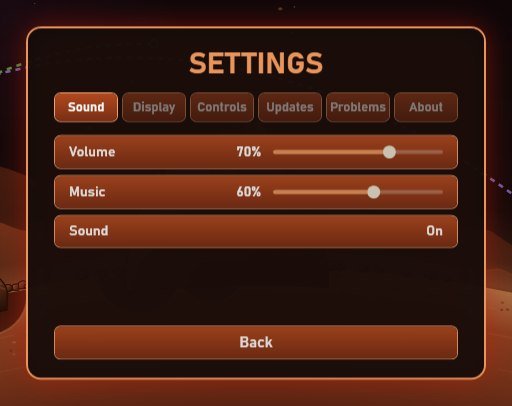
| Setting | Choices | What it does |
|---|---|---|
| Volume | 0 to 100%, 70% | How loud the whole game is. The slider in the bottom bar is the same setting. |
| Music | 0 to 100%, 60% | How loud the music is, compared with the sound effects. 0% turns the music off and keeps the effects. |
| Sound | On, Off | Off mutes everything, music included. Same as M or the speaker button. |
Display

| Setting | Choices | What it does |
|---|---|---|
| Full screen | On, Off | Fills the screen with the game, with no window frame. Same as F11. The game starts the way you left it. |
| Player colors | Green and purple, Blue and yellow | The colors that tell the two Martians apart, on the battlefield and in the panels. Blue and yellow are easier to tell apart with red-green color blindness. |
| Screen motion | Full, Reduced, Off | How much the view moves: the shake from blasts and the slow-motion zoom on the final blow. Reduced keeps a little of it; Off keeps the view still. |
Controls

| Setting | Choices | What it does |
|---|---|---|
| On-screen controls | On, Off | Shows FIRE and walk buttons on the battlefield, for touch screens. Until you choose, they turn on by themselves the first time you touch the screen. Same as T. |
| Controller rumble | On, Off | Whether controllers shake when you fire, get hit and so on. |
| Change Keys | A key per action | Sets the keys for walking, turning the barrel, power and firing, separately for one player and for each of two players. Choose an action, then press its new key; a key already in use swaps over. Reset to the Usual Keys puts them all back. The menus and the fixed keys listed under Controls can't be changed, so nobody can lock themselves out. |
Updates

| Setting | Choices | What it does |
|---|---|---|
| Look for updates | On, Off | Asks our website whether there's a newer version a few seconds after the game starts and every six hours while it's open, and adds Update Available to the menu when there is. It never downloads or installs anything by itself. Off stops it asking. |
| Version | – | Shows the version you have and what the last check found. Choose it to check now; when there's a newer version, it opens the game's page to get it. |
Problems
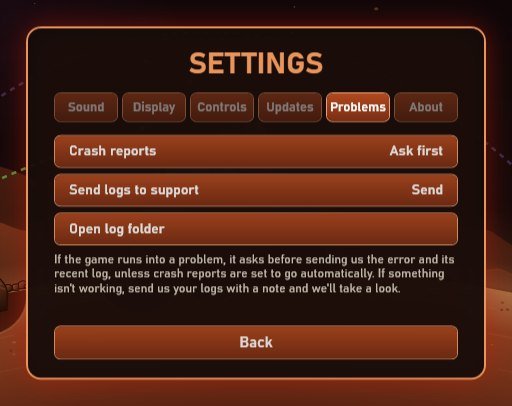
| Setting | Choices | What it does |
|---|---|---|
| Crash reports | Ask first, Send automatically | If the game runs into an error, it shows you what a report would contain and asks before sending it to us. Send automatically sends it without asking. The privacy policy says what's in one. |
| Send logs to support | – | Sends us the game's recent log, with a note from you if you like, when something isn't working. The row shows a reference number once it's sent; quote it if you contact us. |
| Open log folder | – | Opens the folder with the game's logs, one file a day for its last ten days of use. |
About

| Row | What it opens |
|---|---|
| Player guide | This guide, in your browser. |
| License agreement | The agreement you accepted when installing, from the game's folder (the same text is on the website). |
| Third-party notices | The licenses of the software Martian Mortars is built with, from the game's folder. |
| Privacy policy | The privacy policy, in your browser. |
Below them are the version you have and the copyright line.
The free browser version
The light version plays the same battles against the computer, free, in a browser on a computer, phone or tablet, with nothing to install. On a computer it has 10 minutes of play a day, counted only in matches, with the match you're in always allowed to finish; on a phone or tablet there's no limit. When the day's time is used up, it offers the Windows trial. It has no campaign, two players, controllers, stats or settings: the comparison on the game's page shows each version side by side. The first time you play, the same short lesson walks you through aiming, firing and walking. Browsers keep some keys for themselves, so its keys differ a little from the Windows game's:
| Action | Mouse | Keyboard | Phone or tablet |
|---|---|---|---|
| Aim | Drag | ← → angle, ↑ ↓ power | Drag the battlefield |
| Fire | Release | Space or Enter | Tap FIRE |
| Walk | Drag your Martian | A D | Hold ◀ or ▶ |
| Cancel | Right-click | X | – |
| Power | Wheel | W S | Drag further away |
| Game | N new game, F full screen, M mute, H show the controls in a small window. Hold Shift to adjust your aim five times faster. | ||
On a phone, turn the screen sideways for a bigger view of the battlefield. If there's no sound: browsers start sound only after you tap or click, so tap the battlefield once; also check the speaker button in the game, and on a phone, make sure silent mode is off.
Troubleshooting and FAQ
Windows says "Windows protected your PC"
That's SmartScreen saying it hasn't seen many downloads of a new release yet. The installer is signed: choose More info, then Run anyway. The download page explains how to check your download, including its fingerprint.
The game won't start, or closes by itself
Start it again: if it closed because of an error, it offers to send us a report, and that's the quickest way for us to fix it. If it keeps happening, install the newest version from the download page, then use Settings › Problems › Send logs to support (or, if the game won't open at all, contact us and attach the newest file from the log folder below).
My key won't activate
- "The shop couldn't be reached": activating needs the internet, once. Check your connection and try again.
- "Couldn't be verified": install the newest version from the download page, then try again.
- The key isn't recognized: copy and paste it from the email rather than typing it. After several wrong tries, the shop makes you wait an hour, even for the right key. Find your key sends it again.
The menu says my key is no longer on this PC
A key is for one PC at a time. If it's been entered on another PC, it moved there, and this one went back to the trial when it next started online. To move it back, enter the key here again with Unlock the Full Game › I Have a Key. If you haven't used it anywhere else, contact us.
How do I move to a new PC?
Install the game on the new PC and enter your key there. The game moves to it, and the old PC goes back to the trial the next time it starts online. Your stats and campaign progress are kept on each PC, so to bring them along, copy the files record.json and settings.json from the folder below on the old PC to the same folder on the new one before starting the game there. (Copying the license file doesn't work: a license only works on the PC it was made for.)
Where are my settings and progress kept?
In %LocalAppData%\MartianMortars (paste that into File Explorer's address bar):
settings.json: your settings, keys and whether you've seen the lesson;audio.txt: the volume, music and mute settings;record.json: your stats, campaign progress and achievements;trial.json: the trial's playing time for the day;- the license file: the full game's license for this PC;
Logs: what the game did, for its last ten days of use. Settings › Problems › Open log folder opens it.
How do I uninstall it? What does that keep?
Use Windows' Settings › Apps › Installed apps, find Martian Mortars, and choose Uninstall. It removes the game but keeps the folder above, so installing it again picks up where you left off, still unlocked. To remove everything, delete that folder too; you can still enter your key again later.
How do I get an update?
When Update Available appears on the menu, choose it to open the game's page, download the new version and run it. It installs over the one you have and keeps your progress, settings and license. You can also check from Settings › Updates.
There's no sound
Check Settings › Sound: Sound should be On and Volume above 0% (M mutes and unmutes). Then check Windows' own volume and that the right speakers or headphones are chosen. If the game started with no sound device connected, it plays silently: plug them in and start the game again.
My controller doesn't work
The game supports Xbox-style (XInput) controllers. Connect it before or while the game is running, then press any button. For two players, the first controller connected plays the left Martian. Other controllers may need a tool such as Steam's controller settings to appear as an Xbox controller.
I've used up today's trial time
The time comes back the next day: 10 minutes a day after your first day. Meanwhile, the light version in your browser is free with no limit, or unlock the full game for no limit at all.
How do I see the lesson again?
Choose Play the Lesson on the menu. In the trial, it needs some of the day's time left, as it hands over to a real match when it ends.
Still stuck?
Send us your logs from Settings › Problems › Send logs to support with a note, or get in touch through our contact page. We read everything.