 Video Phone Peer
Setting up, and making your first call
Two parts: getting everyone in the house into one group, and ringing them once they are. Neither takes more than a minute.
Set it up
-
Install it on your machine, and one other person's
Download the installer and run it - nothing needs administrator rights, and there's a portable zip on the same page if you'd rather not install anything. Do the same on at least one other machine - a call needs somebody to call.
-
Start a group
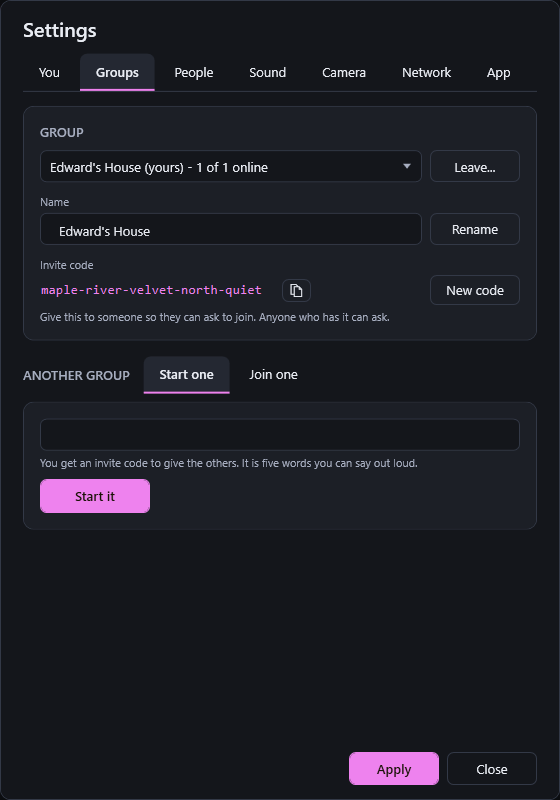
The first time it runs, it asks for your name and offers three things: Create Group, Join Group with a code somebody gave you, or Skip for now. Create Group suggests "your name's House", which you can change to anything. Press Start it and you're given an invite code: five ordinary words, meant to be read aloud or texted, not typed from memory. It's always in Settings, Groups, with a button to copy it.
-
Give the invite code to the rest of the group
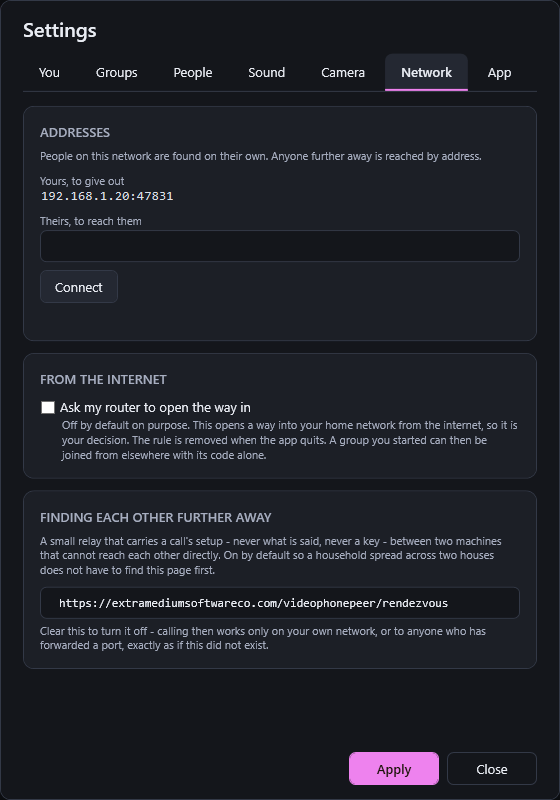
Your invite code is at the top of the main window while nobody else has joined, with a copy button beside it, and always in Settings, Groups. On their machine, they type it into the same first-run screen and press Join Group (or later, from the gear menu, Groups, then Join one). If their machine is on the same network as yours, it'll find you on its own. If they're elsewhere, the code is still enough, as long as you've switched on Ask my router to open the way in (Settings, Network): the app leaves your address with the relay locked under the code, so only somebody holding the code can read it - not even the relay can.
-
Let them in
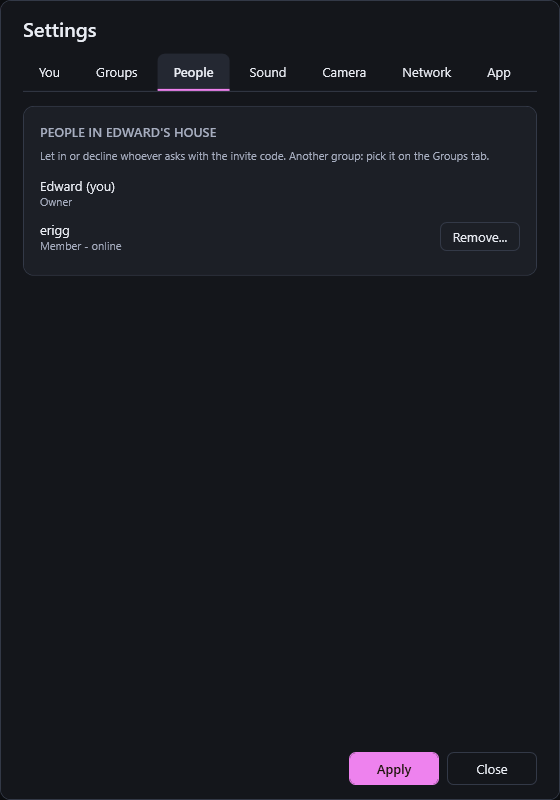
Back on your machine, "1 waiting to be let in" appears at the top of the window. Press it and Settings opens on People, with a Let in button beside their name. Press it, and they're in - the app tells their machine the moment it's done, so they don't have to ask again or refresh anything. The same tab lists everyone in the group and whether they're online, and is where whoever runs the group can remove somebody.
Always ready, even with no window open
Close the main window - its close button, or Close at the bottom of the gear menu - and the app doesn't quit: it keeps running by the clock, ready to ring or be rung. To quit it altogether, use Quit on that icon. That little phone icon reports one thing: whether this machine can currently be reached. Point at it and it says so in a word or two; if it ever looks wrong, that's the first place to check.
Turn on Start with Windows in Settings and it's there from the moment you log in, with nothing to open by hand - the whole point of a tray app is that it's ready before anyone's asked it to be.
Make a call
Ring one person
Press Call at the top of the window. If they're the only other person in the house and they're online, that's it - their phone rings. With more people, you pick who from a list of everyone in the house; whoever is online can be ticked. If nobody answers, you'll be offered the chance to leave them a voice message instead.
Receiving a call
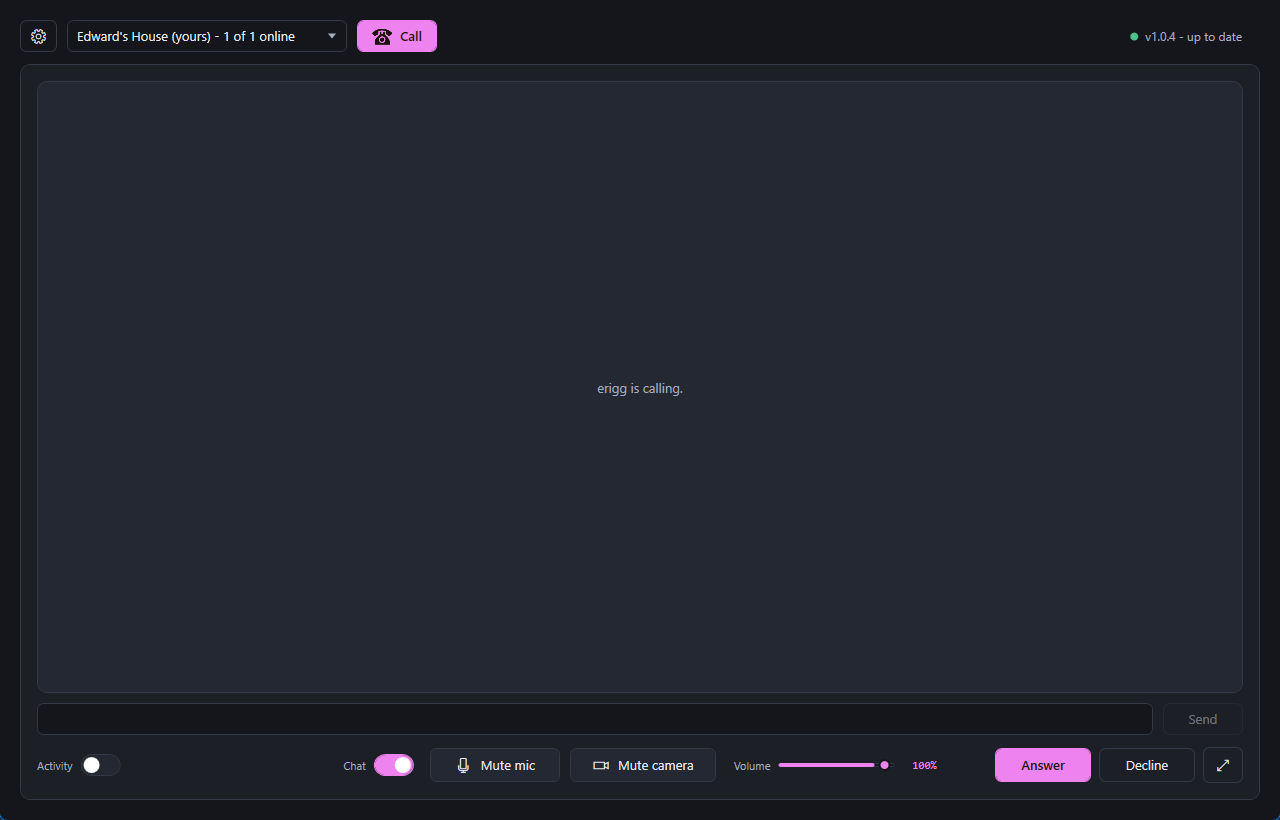
The phone rings - a real ring, not a notification sound, chosen in Settings - and the app's window comes up on its own even if it had no window open at all a moment before. It names who's calling and offers two buttons: Answer or Decline. Nothing else on this machine has to be open or running for that to happen; the tray is enough.
The call screen
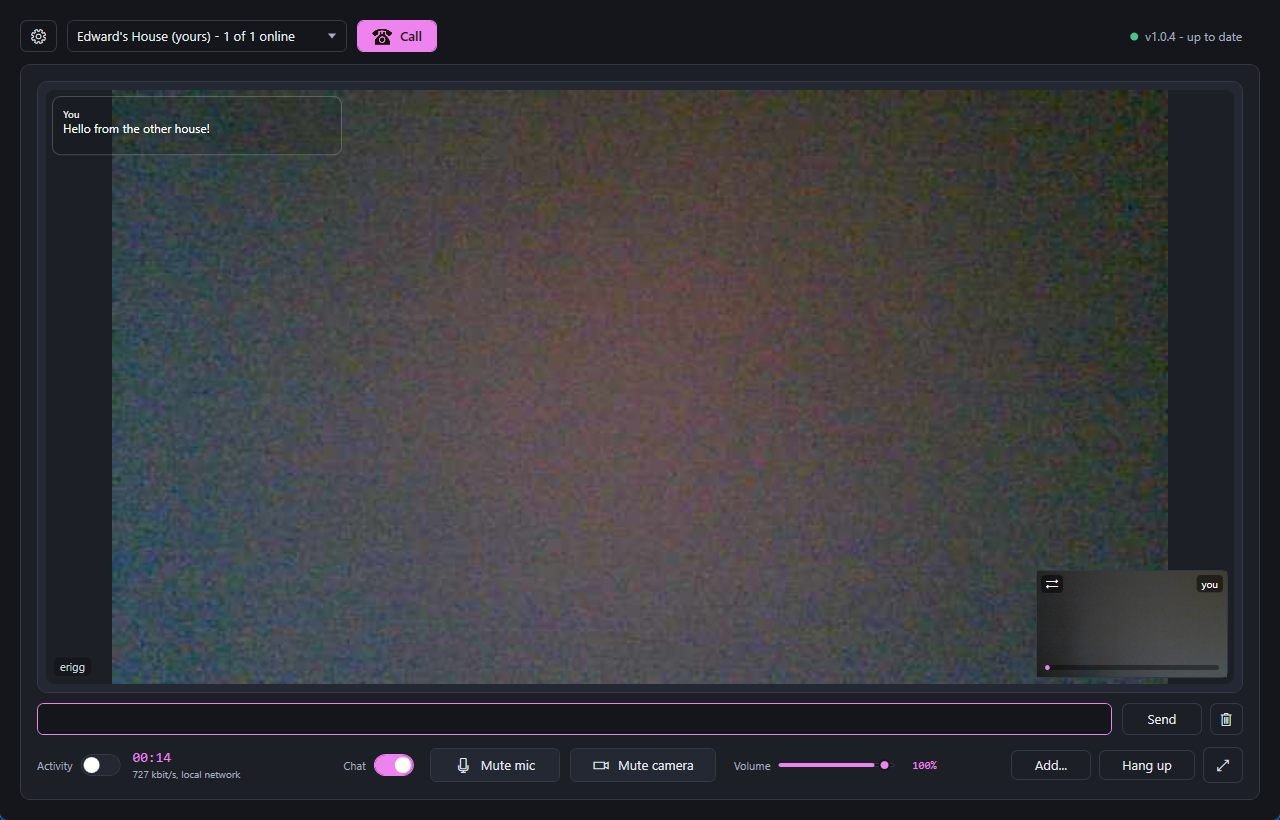
One tile a person, your own small preview in the corner. Mute mic and Mute camera are both about your own end only - neither touches what you hear. The volume slider is this call's alone, separate from the ring volume that got you into it. Add... rings somebody else straight into the call already going, and Hang up only ever takes you off it - a call with nobody in charge keeps going for whoever's left.
Type something in the box under the picture and it appears over the picture for everyone on the call - handy for a word or a link nobody wants to say twice over each other. It travels the same sealed connection the video and voice already do. It sits on the video rather than beside it, dark and mostly see-through, so a word or two never blocks a face for long.
Ring the whole group, or a few of them
Press Call at the top of the window. You'll see everyone in the house, with whoever is online ticked to start with - untick anyone you don't want on this one, then press Call. A call holds up to four people, you included.
While you're on a call
There's no host - nobody is "in charge" of a group call once it's started, and it keeps going even if whoever started it leaves. Anyone on the call can press Add... to ring more people in. And if somebody rings you while you're already on a call, you aren't cut off from them: their call shows up as a knock you can answer into the call you're already on, or decline.
Chat with the house
Each group has one chat, and it works whether or not you're on a call. On a call, what you type goes live to everyone on it. With no call on, it goes to the same people Call would ring: straight to the one other person if they're online, or to whoever you tick from the people who are. Either way it's added to the group's conversation, shown over the picture.
The conversation is kept on your computer until you clear it with the bin button beside Send - clearing yours doesn't touch anyone else's copy. The Chat switch, next to Mute mic, hides the chat and its box without losing anything; flip it back and it's all still there.
Calling across the internet
Two machines on the same wifi or ethernet find each other on their own. Two on different networks - your own home and your parents', say - need a little more help finding each other, and that help is on by default: a small relay, run alongside this site, that carries only what's needed to set the call up. Once it has, the call itself connects the two machines directly, the same as it always did - the relay's part is over the moment it's found the way through.
It's signed, and it's blind. Every address it passes along is signed by the machine that sent it, so the relay can't put words - or a call - in anyone's name; and it's built so it never needs to see anything else, not who's in your group and not a word that's said. Turn it off entirely in Settings › Network if you'd rather - calling then works exactly as it would if the relay didn't exist: on your own network, and to anyone who has forwarded a port on their router.
Still stuck?
Send a message and describe what happened - what you pressed, and what the app said back. That's usually enough to work out what went wrong.